Showing posts with label Installing Android Studio. Show all posts

Sunday, 16 August 2015

Installing Android Studio- Part 3


Till here, I guess all of you have successfully downloaded JDK and Android studio.
If you haven’t then first download JDK and then AndroidStudio.
Android studio icon will appear on your desktop window. If it isn’t then search it and create shortcut on desktop.
  1. Now right click on that icon and click on run as administrator.

          Then a windows will open
          Here, some components will be downloaded for only one time i.e. at your first launch only. So           no need to worry too much about it.
          After finishing download again another window will open
                               
      2. This is the important windows. Do not click on Start a new Android Studio project.
          Now, only click on Configuration. Configuration option only comes when we run the                           application as administrator and hence we did it.

                               
       3. Click on SDK manager
                               
      4. Here, you will download few external packages which will be required in future. Download all           given packages with one addition, check the last box i.e. Intel x86 Emulator Accelerator                       (HAXM installer)
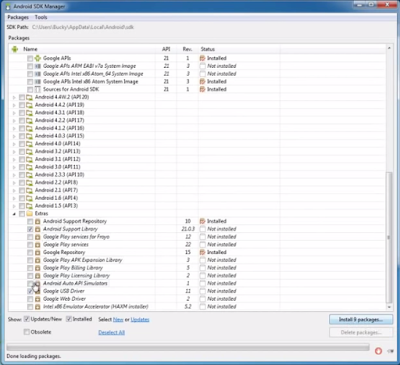
                               

          Now, close everything and from now, you fully prepared to start your android studio.

Installing Android Studio- Part 2


The requirement to work on Android Studio is of JDK. If you haven’t yet downloaded JDK yet then Click here.
After downloading JDK you are ready to download Android Studio.
  1. Search as download android studio on Google

                                  
      2. Download it from the website shown in figure.
          Now, click on the link.
          Go on DOWNLOAD ANDROID STUDIO FOR WINDOWS
                                 
      3. Now, accept the license agreement and click to DOWNLOAD ANDROID STUDIO FOR                 WINDOWS
                                  
         The setup will be near to 1GB. After finishing download double click on downloaded .exe file             and install the setup.
          After downloading give me a Hi5 because you have successfully downloaded your android studio.

But wait a minute, you have to do one more or the neglected by many but fully important step which is to download external packages.

Installing Android Studio- Part 1


This tutorial is just for those who are fully new to android studio. If you have already installed android studio then you may skip this tutorial but make sure that you have downloaded all external required packages. Now let’s begin all with the tutorial.
  1. As we will do android programming in java, JDK is the required thing without which creating android app is just a dream. If you haven’t installed JDK yet then go on Google and search as JDK download. Click on first link by oracle


     2. Now, oracle website will open. Click on JAVA platform (JDK) download.

     3. Accept license agreement. Focus on 2 links
         Windows x86 and Windows x64. If your computer is 32 bit then download for the version for              Windows x86. If your computer is 64 bit then download for the version for Windows x64.
                               
       After downloading the JDK, open the .exe file and install the JDK.
       Half of the task is complete